



Years ago, I was the executive director of a lively nonprofit in Austin. Everyone wanted to take me to coffee and pick my brain (which sounds considerably more gruesome when you think about it for two seconds). You can’t say no to all of them because networking matters, but you also can’t spend two hours with everyone who has “just a few questions” that somehow multiply like gremlins fed after midnight.
I didn’t have an assistant to call me with a fake emergency and rescue me from conversations that should have ended twenty minutes ago. So I engineered my own escape hatch.
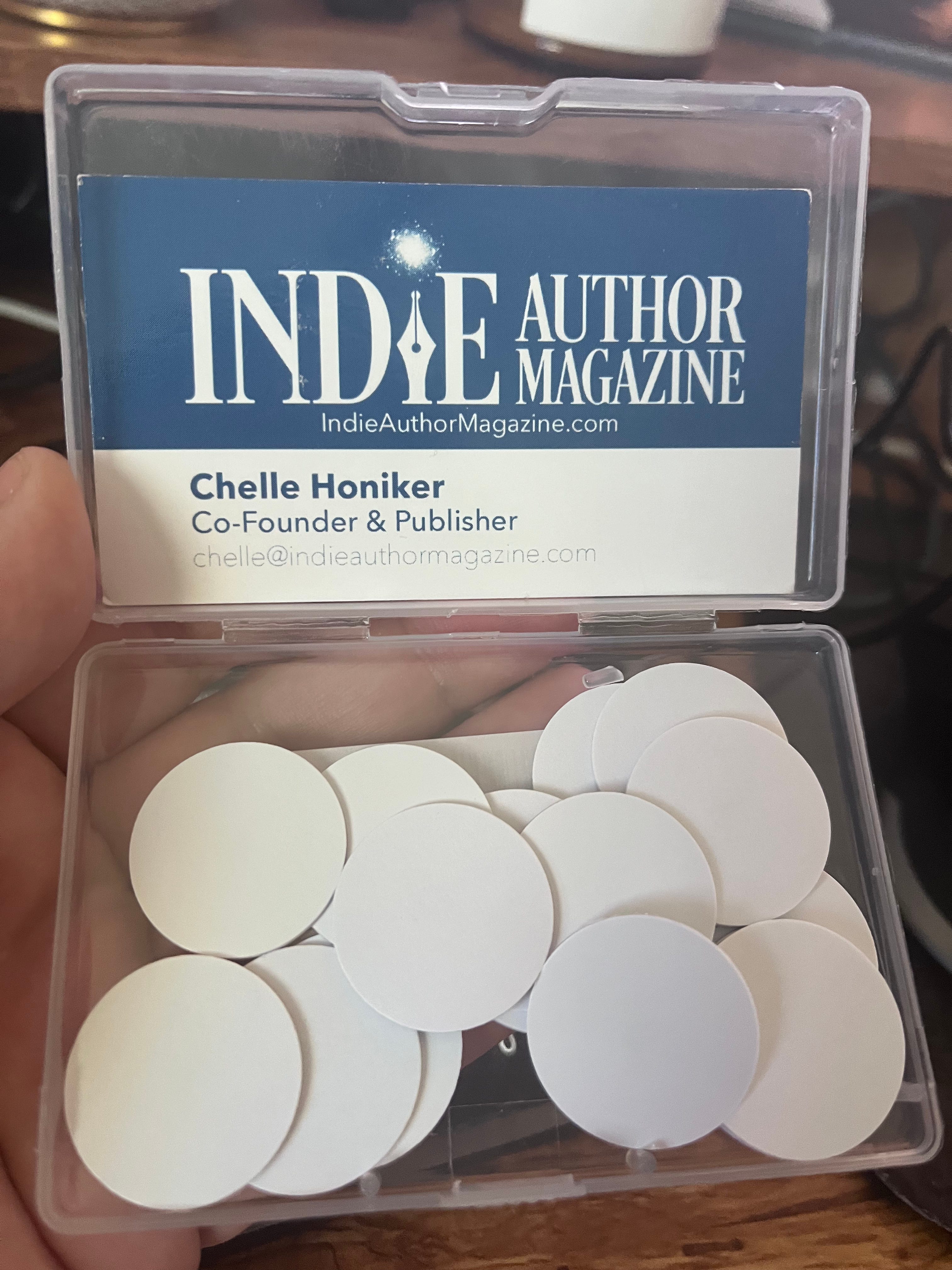
I stuck an NFC tag—a little sticker smaller than a quarter—in the outside pocket of my purse. When a coffee meeting hit the forty-five-minute mark and showed no signs of wrapping up, I’d casually reach into my bag (ostensibly looking for a tissue or checking my phone) and tap my phone against it. Instantly, my phone would erupt with an obnoxious alarm and display an urgent-looking notification: “CALL IMMEDIATELY - TIME SENSITIVE.” I’d look apologetic, excuse myself, and escape with my afternoon intact.
Was it a little theatrical? Absolutely. Did it save my sanity? More times than I can count.
The beauty of NFC tags is that they’re programmable little escape pods, productivity boosters, and automation triggers that cost next to nothing. And once you understand how they work, you’ll start seeing opportunities everywhere. First dates that aren’t going well. HOA board meetings that have devolved into arguments about fence heights. That networking event where someone has cornered you to explain their cryptocurrency strategy for the fourth time.
But beyond social self-defense, NFC tags are genuinely useful automation tools that can streamline your daily life in ways that feel almost magical once you set them up.
So What Exactly Is an NFC Tag?
NFC stands for Near Field Communication. It’s the same technology that lets you tap your phone to pay for things, tap your transit card on the subway, or badge into your office or hotel room. The “near field” part means it only works when devices are practically touching—we’re talking a couple of centimeters, not across the room.
An NFC tag is a tiny, unpowered chip embedded in a sticker, card, keychain, or other small object. It contains a minuscule amount of data and an antenna. When you tap your phone to it, your phone powers the chip with its electromagnetic field (this is why the tag doesn’t need batteries) and reads whatever information is stored on it.
Here’s the part that matters for automation: you can program NFC tags to trigger specific actions on your phone. Tap the tag, phone does the thing. No unlocking required, no opening apps, no hunting through menus. Just tap and go.
iPhone vs. Android: The Setup Difference
Both major phone ecosystems support NFC tags, but they handle them a bit differently.
iPhone (iOS 13 and later): Apple uses the Shortcuts app for NFC automation. You create an automation triggered by scanning a specific NFC tag, then tell it what actions to perform. The tag itself doesn’t store the automation—your phone recognizes that particular tag and runs whatever automation you’ve assigned to it.
iPhones can scan NFC tags in the background (no need to open an app first) on iPhone XS and later models. Older iPhones require you to open the Shortcuts app or use the NFC scanner in Control Center.
Android: Android devices have supported NFC for years, and the implementation varies by manufacturer. You can use apps like Tasker, MacroDroid, or NFC Tools to program your tags. Android phones generally need to be unlocked to trigger NFC automations, though some phones support it from the lock screen.
For most authors, the iPhone Shortcuts approach will be the most straightforward, so that’s what I’ll focus on here. Android users—your mileage may vary depending on your specific phone and automation app of choice, but the concepts translate.
The Shortcuts App: Two Tabs That Do Very Different Things
If you’ve opened the Shortcuts app and felt immediately confused, you’re not alone. Apple managed to make this both powerful and bewildering, which is their special talent. (Powerful and Bewildering sounds like a good book title… or maybe a band name, hold on… adding that to a spreadsheet to write that book or start a band.)
The app has two main tabs you need to understand: Shortcuts and Automation. They sound similar but work completely differently.
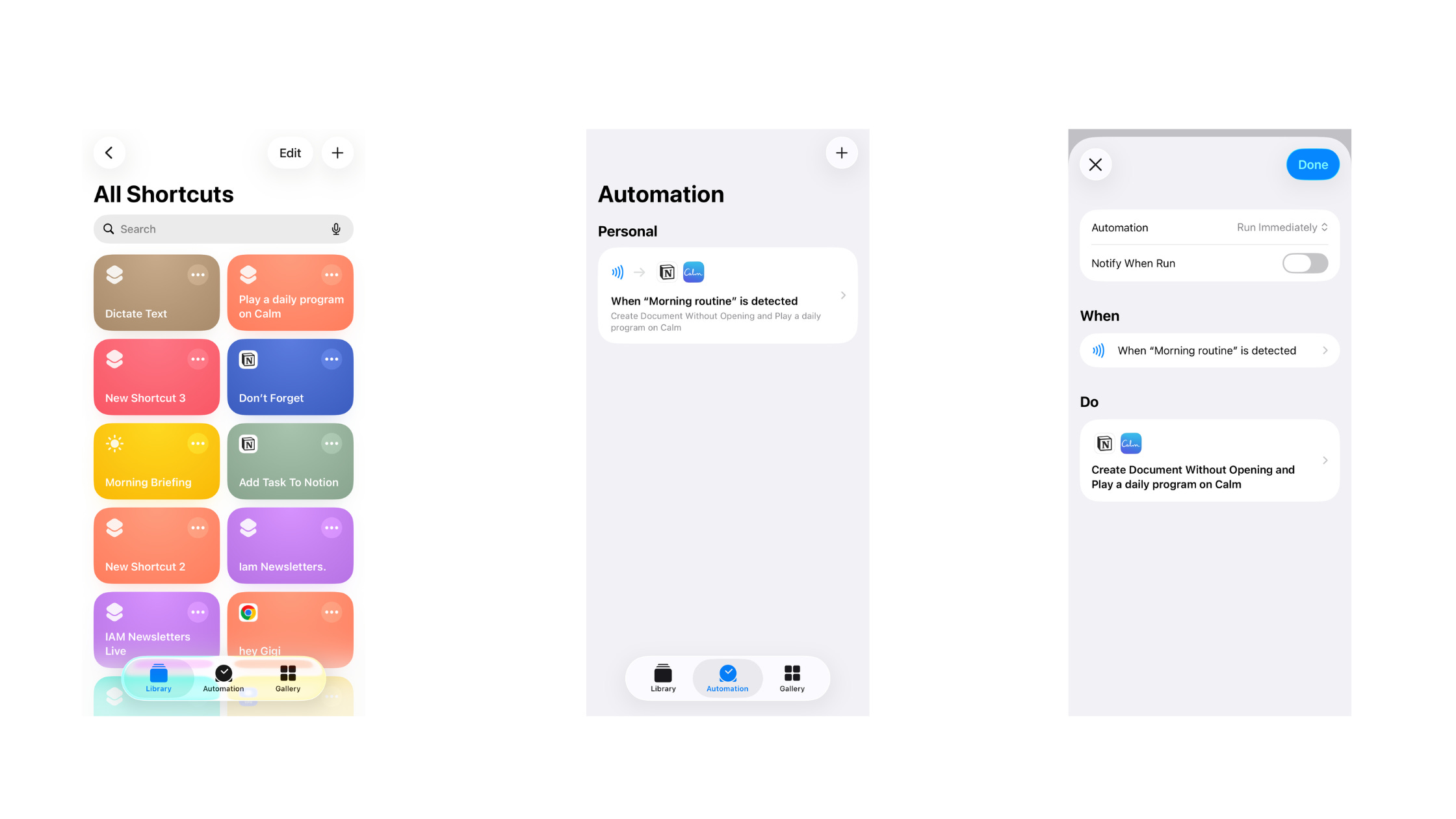
The Shortcuts Tab: This is where you build reusable actions—like little programs you can run whenever you want. A shortcut might be “text my partner that I’m on my way home” or “turn on my writing playlist and open Scrivener.” You run these shortcuts manually by tapping them, asking Siri, or adding them to your home screen.
Think of shortcuts as recipes you’ve written down. They sit there waiting until you decide to cook.
The Automation Tab: This is where the magic happens for NFC tags. Automations are shortcuts that run automatically when something specific happens—a trigger. Triggers can be things like: arriving at a location, a specific time of day, opening a particular app, or (here’s our star) scanning an NFC tag.
Think of automations as recipes that start cooking themselves the moment you walk into the kitchen.
When you tap an NFC tag, you’re providing a trigger. Your phone recognizes that specific tag, checks if you have an automation assigned to it, and runs whatever actions you’ve set up.
The screenshots I’ve included show both tabs. The Shortcuts tab displays your library of manual shortcuts. The Automation tab shows your list of “when X happens, do Y” rules—including NFC triggers.
Real NFC Tags in My Real Life
Let me walk you through some NFC automations I actually use, because the best way to understand this tech is to see it in context.
The Morning Boot-Up Sequence
I have an NFC tag stuck to my nightstand. When my alarm goes off and I’m tempted to doom-scroll instead of starting my day like a functional human, I tap the tag.
Here’s what happens:
The Calm app opens to my preferred meditation
A log entry gets created in my Notion journal noting that I meditated (because if it’s not tracked, did it even happen?)
After meditation, my Notion journal opens to my morning prompts page
This last part is key—I have a template with prompts I answer each morning. Things like intentions for the day, what I’m grateful for, what’s weighing on me. The NFC tag creates a smooth runway from “barely conscious” to “actually journaling” without requiring any decision-making from my groggy brain.
The automation handles the cognitive load so I don’t have to. I just tap and follow the breadcrumbs.
The Walking Workout Tracker
I stuck an NFC tag by my front door—the inside, where I’d naturally tap it heading out and coming back in.
When I tap it on my way out, it starts logging a walking workout in the Health app. GPS tracking kicks in, timer starts, the whole thing.
When I tap it again coming home, it ends the workout and does two things: logs the walk to my Notion journal (date, duration, distance) and sends the data to MyFitnessPal so my exercise and nutrition tracking stay in sync.
I used to forget to start my workout tracker until I was three blocks from home. Or I’d finish a walk and forget to log it anywhere. Now my front door handles the remembering for me.
The Refrigerator Grocery Trigger
There’s a tag stuck to the side of my refrigerator, right at eye level. When I tap it, my grocery list app opens directly to the input field.
This sounds so simple it’s almost embarrassing, but it solved a real problem. I’d notice we were out of eggs while cooking breakfast, think “I should add that to the list,” then promptly forget by the time my hands were free. Now I tap the tag while the thought is fresh, speak or type the item, done.
The key is reducing friction. The fewer steps between “I need eggs” and “eggs are on the list,” the more likely the eggs actually make it to the list.
The Coffee Bean Autoorder
I have an NFC tag stuck to my coffee maker. When I tap it, a shortcut runs that opens the Lavazza subscription site with my usual order pre-loaded. One more tap to confirm, and beans are on their way. I used to have this on autoship, but as much travel as I do, I ended up with an entire freezer full of bricks of beans in the garage freezer and some side-eyes from neighbors once when I opened it to get a popsicle for Princess Elowyn.
You could set this up with any regularly ordered item—printer paper, pet food, vitamins, whatever you tend to run out of at inconvenient times. The tag becomes a physical “reorder” button placed right where you’ll notice you need it.
The Starbucks Car Tag
This one brings me a possibly unreasonable amount of joy. I have an NFC tag in my car, stuck between two air vents. Tap, and my phone places my exact Starbucks mobile order: hot grande quad-shot pistachio oatmilk latte, upside down, ristretto. (Yes, that’s a real order. Yes, the baristas probably have opinions about me. No, I don’t care because it’s delicious and I order it in the app so they don’t have to key it in. I’m thoughtful that way.)
By the time I pull off exit 200 on I-35, I sail through the drive-thru, with enough caffeine to tackle the Austin traffic.
The automation handles the order details I always want. If I ever need to modify it, I can just open the app normally. But 95% of the time, my order is exactly the same, and the tag makes it effortless.
More Ideas to Get You Thinking
Beyond my personal setups, here are some NFC tag possibilities that might fit your author life:
Writing mode activation: Tap a tag at your writing desk to enable Do Not Disturb, open your writing app, start a focus playlist, and maybe log your start time for tracking.
Conference networking: Program a tag with your contact info (vCard) that people can tap to instantly save your details. Cheaper and more memorable than business cards, and you’ll never run out.
Sprint timer: Tap to start a 25-minute Pomodoro timer. Tap again when the alarm goes off to log your sprint and take a break reminder.
Car mode: Tap when you get in the car to start your podcast app, enable driving focus mode, and pull up your navigation app.
End of workday: Tap to log your stop time, close work apps, disable work notifications, and maybe text your partner that you’re wrapping up.
Getting Started: What You Need
The tags themselves: NFC tags are shockingly cheap—you can get a pack of 10 stickers for under $5 on Amazon. Look for NTAG215 or NTAG216 tags, which have enough memory for most uses and work well with both iPhone and Android.
The setup process (iPhone):
Open the Shortcuts app
Tap the Automation tab at the bottom
Tap the + in the top right corner
Select “NFC” as your trigger
Tap “Scan” and hold your phone to the NFC tag you want to use
Name your tag something memorable (you’ll thank yourself later when you have twelve tags and can’t remember which is which)
Add the actions you want to happen when you scan that tag
Save your automation
That’s genuinely it. The first one might take you ten minutes while you figure out the interface. After that, you’ll be cranking them out in seconds.
When things don’t work (because they won’t always):
Your phone needs to be awake to scan NFC tags. It doesn’t need to be unlocked, but the screen needs to be on. If you’re tapping a tag and nothing’s happening, wake your phone first.
Some phone cases—especially thick ones or those with metal components—can interfere with NFC scanning. If you’re having trouble, try removing the case temporarily to see if that’s the culprit.
The NFC reader on iPhones lives near the top of the phone (around the camera area). Hold that part of your phone close to the tag, not the bottom or middle.
If an automation suddenly stops working, check that the Shortcuts app still has permission to run automations. iOS updates occasionally reset these settings, which is annoying but fixable in your phone’s Privacy settings.
And if your carefully programmed tag launches the wrong automation—congrats, you’ve discovered that NFC tags can’t actually be “erased” the way you might expect. What’s happening is you accidentally assigned a new automation to that tag, overwriting the old one. Each tag has a unique ID, and your phone remembers what automation goes with what ID. To fix it, just edit the automation in the Shortcuts app; no need to throw out the tag.
Placement tips:
Stick tags where you’ll naturally reach for them—the goal is zero extra effort
The adhesive is pretty good but not indestructible—consider using a clear case or holder for tags you’ll tap frequently
Tags work through thin materials (phone cases, fabric, paper) but not through metal. Don’t stick them on metal surfaces or the signal won’t get through
Keep tags away from credit cards and key fobs, which can interfere with the signal
If you’re putting a tag somewhere public (like your car), remember that anyone with an NFC-enabled phone could potentially scan it. Don’t program a public-facing tag to do anything sensitive
Colored or printed NFC tags exist if aesthetics matter—they work the same as plain white stickers
Some people write directly on tags with a Sharpie to remember what they do. Low-tech solution to a high-tech problem, but it works
The Bigger Picture
NFC tags are automation training wheels. They teach you to think in triggers and actions, which is the foundation of every automation platform—Zapier, Make.com, n8n, all of it. “When this happens, do that.” The tag is just a very physical, very tangible version of that logic.
Once you start thinking this way, you’ll see automation opportunities everywhere. Every repetitive task becomes a candidate for “how could I trigger this automatically?” Every frequent action becomes “where could I put a tag to make this easier?”
And here’s the sneaky benefit: these little wins build momentum. Setting up an NFC tag and watching it work feels like a small superpower. That feeling makes you more willing to tackle bigger automations, more complex workflows, more ambitious systems.
You start with a tag that opens your grocery list. You end up with an entire automated content calendar.
Your Assignment (Should You Choose to Accept It)
Pick one friction point in your daily routine. Something small, something you do often, something that always requires a few too many taps to accomplish.
Order some NFC tags (or use one from that pack you bought three years ago and never figured out). Set up one automation. Just one.
Stick the tag somewhere logical. Use it for a week.
Then reply to this email and tell me what you built. I love seeing what people create once they realize these little stickers are actually tiny automation buttons disguised as arts and crafts supplies.
And if you ever find yourself trapped in a meeting that should have ended twenty minutes ago—well, now you know there’s a solution that fits in your purse pocket.
Happy automating, Chelle