


It’s post- (American) Thanksgiving, which means we’re officially in the chaos zone. Every commercial is screaming about doorbuster deals, your inbox is 80% Cyber Week notifications, and you’re supposed to have your holiday prep done already. (I haven’t started. Not a single thing. Send help.)
I’m personally holding out hope that I can train a bot to handle this for me, but until then, I’ve got something actually useful: a way to capture tasks the moment they hit your brain, whether you’re elbow-deep in baking pies or standing in line at the post office.
Android Folks —I’ll do a comparable tutorial for you next. This week’s for the Apple Fangirls (and boys).
Your iPhone Has a Secret Weapon (And It Lives on Your Wrist)
Let me introduce you to Shortcuts—or reintroduce you, because chances are you’ve ignored them since they appeared on your phone. Shortcuts are Apple’s built-in automation tool, and they’re criminally underused. Think of them as tiny automation recipes that live on your phone and Apple Watch, ready to handle repetitive tasks with a single tap.
The specific scenario I’m walking through today came from a conversation with a colleague who was tired of fumbling with her phone every time she needed to capture a task. She wanted something faster—tap her watch, speak the task, done. Turns out, you can do exactly that with Shortcuts and Notion.
(If you’re wondering why Notion specifically, I wrote and recorded whole guide with video about how I use it to run my author business and why it replaced my messy juggle of Todoist, Evernote, and three other apps. The short version: it’s my single source of TASK truth for everything.)
What Shortcuts Actually Do
Shortcuts let you string together actions from different apps to create custom workflows. You can trigger them with a tap, a voice command, or even automatically based on time or location. The real magic happens when you sync them to your Apple Watch—suddenly you’ve got powerful automation sitting on your wrist.
Here’s what makes them great for authors:
No third-party app downloads required (they’re built into iOS)
Free to use (no subscription or premium tier)
Work offline (your phone handles everything locally)
Sync across all your Apple devices automatically
Setting Up Your Notion Task Shortcut
The goal here is simple: say “Hey Siri, Don’t Forget” to your watch, dictate what you need to do, and have it land in your Notion database instantly. Here’s how to build it.
Step 1: Create a New Shortcut
Open the Shortcuts app on your iPhone. Tap the plus icon in the upper right corner to start a new shortcut.
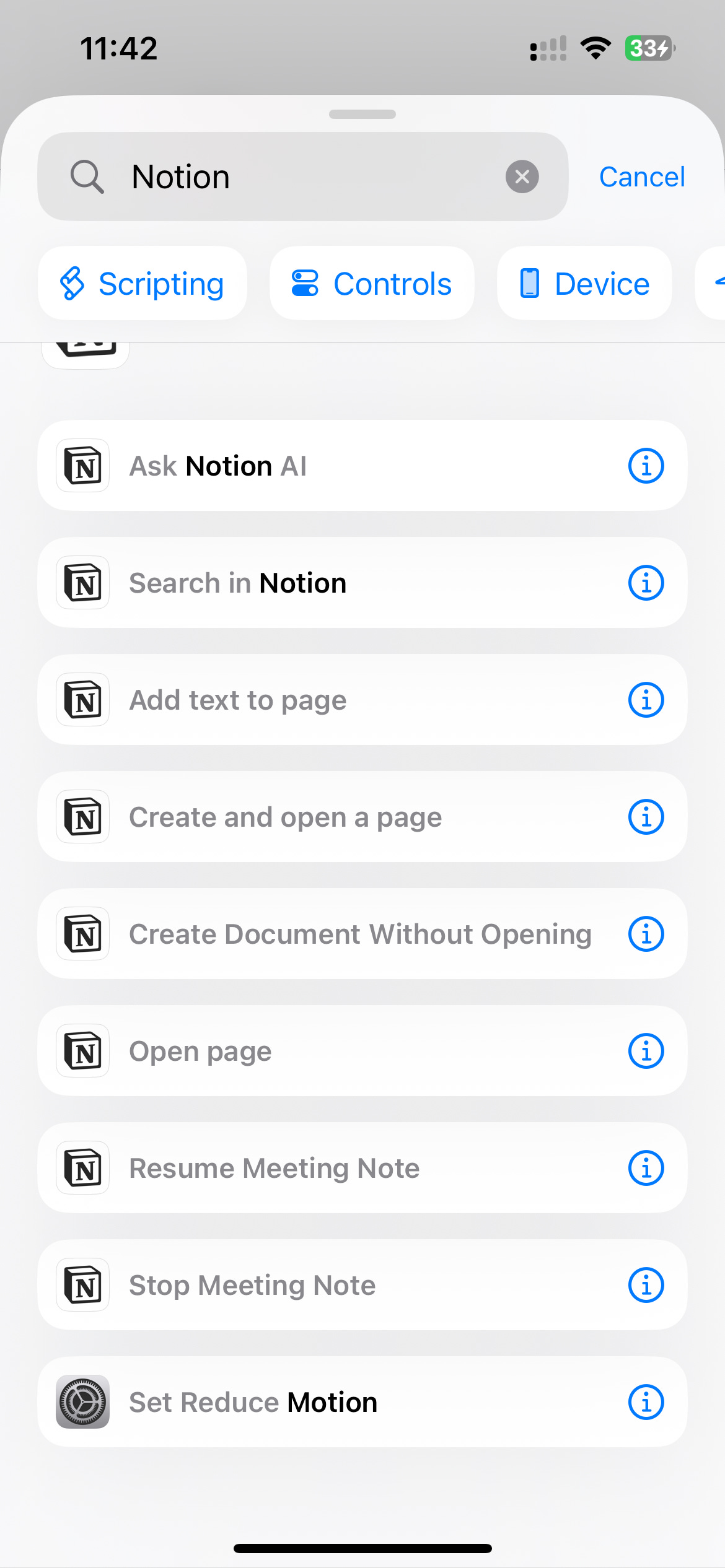
Step 2: Search for Notion
In the search actions bar, type “Notion.” (If you haven’t downloaded Notion or connected it yet, do that first—the shortcut won’t work without it.)
Step 3: Choose “Create Document Without Opening”
This is the part that makes it seamless. Your task gets created in the background without forcing you through extra screens.
Step 4: Set Up the Text Input
Now you’re at a screen for “Create a page with text.” When you get to the text field, choose “Ask Every Time” from the dropdown. This tells the shortcut to wait for you to dictate what the task actually is.
For the body field, just type something simple (even a single word works). This prevents you from having to deal with a two-step process every time.
Step 5: Choose Your Database
Select which Notion database you want tasks to land in. If you’re using my Notion setup, this will be your “Tasks Current” database or “Tasks PARA” depending on how you’ve organized things. (If you want to see how I’ve structured my Notion workspace, I’ve got a full video here)
Click done when you’re finished.
Step 6: Rename Your Shortcut
This is critical. Go back and rename your shortcut to something easy for Siri to recognize. I use “Don’t Forget” because it’s natural to say and Siri never misunderstands it. Whatever you choose, make it short and distinct.
Step 7: Turn It On for Your Apple Watch
Open the details page for your shortcut (it’s the little ‘i’ like informatio) and make sure it’s toggled on for your Apple Watch. Without this step, your watch won’t know the shortcut exists.
Now you can raise your watch and say, “Hey Siri, Don’t Forget,” then dictate your task. It gets added to your Notion database automatically while you move on with your life.
Empty Your Brain - It’s Psychologically Programmed to Relax When You Get it Down Somewhere.
Your brain is terrible at holding onto tasks. It’s not designed for that. What it’s really good at is spinning in anxious loops, constantly reminding you “don’t forget the thing, don’t forget the thing, don’t forget the thing” until you want to scream.
The moment you capture that task somewhere external—your watch, your phone, a database—your brain exhales. It stops the mental overdrive because it knows the information is safe. You’re not going to forget anymore. The loop breaks.
You need a capture system fast enough to match the speed of your thoughts. This setup takes five minutes to build and gives your brain permission to let go of the mental clutter.
Plus, it works for any database-style app that integrates with Shortcuts, not just Notion. Adapt it for Airtable, Todoist, Things, or whatever task manager you’re using. The tool doesn’t matter—what matters is getting thoughts out of your head before they start looping.
Watch the Walkthrough
I’ve recorded a quick video showing you the exact steps:
If you’ve been sleeping on Shortcuts, this is your wake-up call. They’re not just for tech nerds—they’re for anyone who wants to reclaim tiny pockets of time and mental energy.
And if you figure out how to train a bot to do my holiday shopping, please share. I’m running out of time.
Stay organized (or at least try to), Chelle
P.S. If you’ve built any useful Shortcuts for your author business, hit reply and tell me about them. I’m always looking for new ways to automate the boring stuff so I can focus on the work that actually matters.