



Last week I walked you through getting the desktop app set up, why Cowork lives there instead of the web, and what a terminal is for those of you who remember installing Oregon Trail from a floppy disk. (The number of you who DM’d me about dying of dysentery was deeply validating.)
This week we’re getting into the features that actually make Cowork powerful enough to justify the subscription. There are three concepts to understand: Connectors, Skills, and Plugins. They sound more technical than they are, and by the end of this newsletter you’ll know what each one does, how they relate to each other, and which ones matter for where you are right now.
Connectors: How Claude Talks to Your Other Apps
A connector is exactly what it sounds like — a bridge between Claude and another app you use. When you connect Google Drive, Claude can read and search your files without you copying and pasting content into a chat window. When you connect Gmail, it can search your email, find threads, and draft replies. When you connect Google Calendar, it can check your schedule and add events.
Without connectors, Claude is stuck in the same copy-paste loop you’ve been in with every chatbot: you manually bring information to it, and you manually take information back out. Connectors let Claude go get what it needs and put things where they belong.
To set one up, open the Claude desktop app, go to Customize, and you’ll see a directory of official connectors — Google Drive, Gmail, Google Calendar, Zoom, Notion, Slack, Stripe, Zapier, and a list that keeps growing. Click “add,” sign into your account, and you’re connected. Claude can now read from and write to that service.
If you’ve been reading this newsletter for a while, you might remember my deep dives on MCP servers. Connectors and MCP servers are the same thing with different names. MCP stands for Model Context Protocol (you absolutely do not need to remember that) — it’s just the technical term for how Claude connects to other apps. When Anthropic builds an official connector and puts it in that directory, they’re packaging up an MCP connection with a friendly button and some security vetting so you don’t have to think about the plumbing.
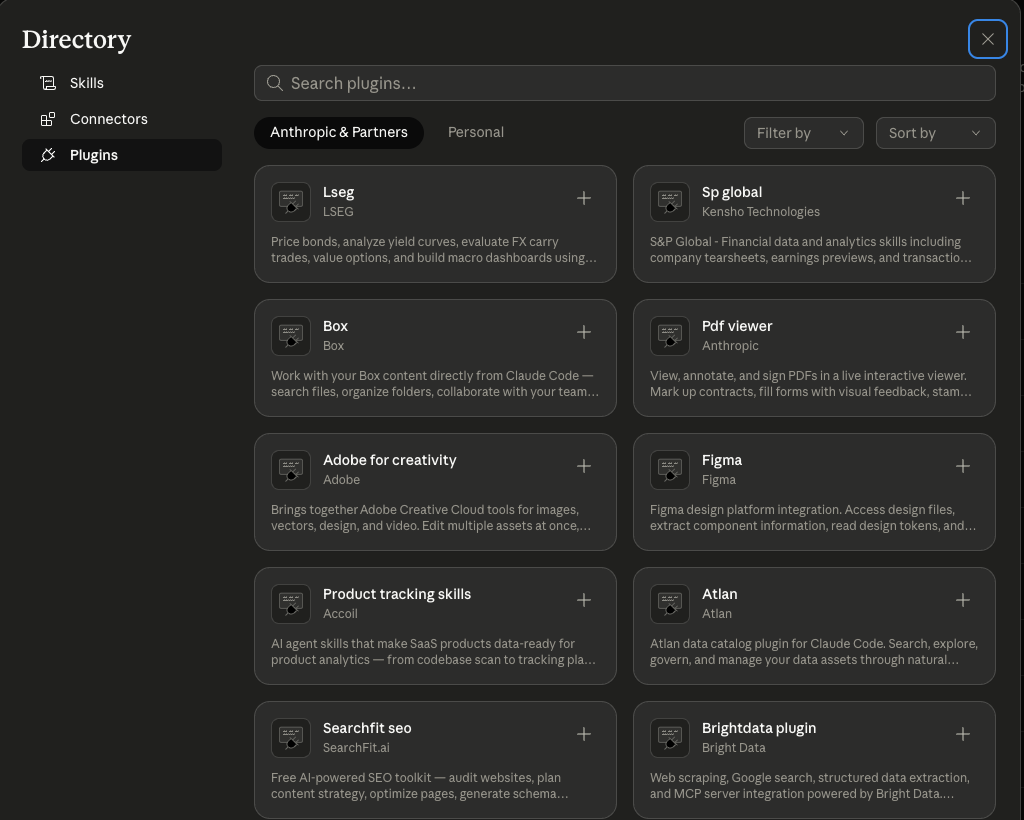
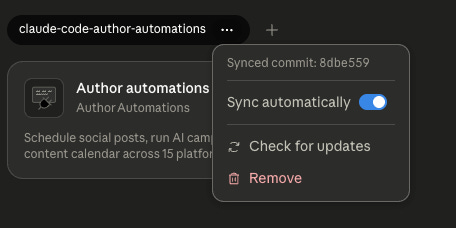
Beyond the official connectors, Claude let’s you also configure Personal connectors, which are available by first connecting a Marketplace link provided by the plugin developer, or uploading a plugin. My preference is a Marketplace link because the plugin can be configured to remain in sync with the developer.
Web Connectors vs. Desktop Connectors (Yes, They’re Different, and Yes, It’s Confusing)
This trips people up, so I want to lay it out clearly — and acknowledge that even I find this part messy.
There are two types of connectors: web connectors and desktop connectors. Web connectors run on the company’s servers in the cloud. Desktop connectors install something on your local machine and run from there. Both types can be set up inside the Claude desktop app through Cowork, which is where the confusion starts — you’re in the desktop app, but some of the connectors you’re adding are web-based and some are local.
The practical difference matters more than the technical one. Web connectors generally work the same on every machine because they’re running on someone else’s server. Desktop connectors can be finicky because they sometimes require additional software installed on your computer (things like Node or Bun, which are developer tools that most authors have never heard of and shouldn’t need to care about). Whether a desktop connector works smoothly can also depend on whether you’re on Mac or Windows, because the two operating systems don’t always play nice with the same configuration.
I learned this the hard way with authorautomations.social. We originally built it as a desktop connector, and it worked great on Mac because 99% of Macs ship with the software we used for the connector. Then Windows users started testing it from behindVPNs and we hit inconsistencies that were frustrating for the users to troubleshoot. So we rebuilt it as a web connector, and the cross-platform headaches went away. We lost a tiny bit of functionality, but it was worth the trade-off.
My prediction (and keep in mind that we are still in the genuinely early days of all of this): most companies you’d want to connect to will have official web connectors soon. The direction this is heading is toward click-to-connect web connectors that work regardless of your operating system, and desktop connectors will become more of a power-user option for custom setups. In the meantime, if you run into a connector that’s giving you grief during setup, it’s probably a desktop connector with a dependency your machine is missing. Drop a note in the Discord and we’ll help you sort it out.
The One-Account Limitation (And How to Get Around It Safely)
One thing worth knowing about official connectors: most currently support one account per service. So if you have three Google accounts (I have approximately 4,000, which is a me problem), the official Google Drive connector lets you connect exactly one of them.
For most authors with a single Google account, this is a non-issue. For those of you juggling a personal account and a business account, or multiple pen name accounts, it’s a real limitation — and this is where third-party connectors enter the picture.
There are developers out there building connectors that solve specific problems like this, and some of them are genuinely good. The challenge is that this space is the wild west right now, and you need to know how to vet what you’re installing before you give it access to your Google account (or your email, or your files, or anything else you care about).
For example, if you Google “MCP server for multiple Google accounts,” one of the first results is a listing on mcpmarket.com for a multi-account Google connector. No shade to the developer — it might be a perfectly fine product. But when I look at the details, the developer has one follower, and the underlying software repository has one star. That tells me almost nobody has reviewed this code, and I’m not comfortable connecting my Google accounts through it.

Compare that with the google_workspace_mcp connector by Taylor Wilsdon, which is what I use and what I walked through at the AI Summit (including a separate video step-by-step I recorded after because everyone asked for it!). That repository has 2,300+ stars and over 700 developers contributing to the code. That level of community involvement means a lot of eyes have looked at this software, a lot of people are actively using it, and problems get found and fixed quickly.
When you’re evaluating any third-party connector, look at the GitHub repository behind it. 99% of developers use Github. Check the star count (think of these as votes of confidence from other developers), check how many contributors are involved, and check when it was last updated. A connector with thousands of stars and recent activity is a very different proposition than one with a single star from the person who built it. You’re potentially handing these tools a lot of power — treat that decision the way you’d treat giving someone a key to your house.
Skills: Teaching Claude to Do Things Your Way
Connectors give Claude access. Skills tell Claude what to do with that access and how to do it the way you want.
A skill is a saved set of instructions — think of it as a recipe card for a specific task. It includes what the task is, how you want it done, what tools to use, what your preferences are, and what standards to apply. When you activate a skill, Claude follows those instructions instead of making its own assumptions about how you’d like things handled.
I have over 100 skills at this point, and that’s genuinely where I think everyone should be heading. Every repeatable task in your business is a candidate for a skill, because every skill you create is one less time you have to explain yourself from scratch.
My Brevo Mastermind Newsletter skill drafts my weekly newsletter to my mastermind group with the right tone, format, and sign-off every time. It also scans my Notion for things I’ve added throughout the week that I wanted to remember to tell them about, because my neurospicy brain is not going to hold onto the thing I really, really wanted to mention by the time Thursday rolls around. I just toss it into Notion whenever I think of it and let the skill find it when it’s time to draft.
My Update WooCommerce Products skill, combined with a project in Cowork, knows that my covers are in a specific folder on my computer and my book copy is in Airtable. Because both are connected, it goes and gets everything it needs — the cover image, the description, the metadata — and adds the new book to my online store. (You could do the same thing with Shopify, Payhip, or whatever you use to sell direct.)
My Email Triage skill has my instructions for how to sort, prioritize, and respond to email across all my accounts, and we go 1x1 twice a day (with a scheduled task we’ll talk about in future posts because those deserve their own detail, and a small parade to celebrate them) and respond, archive, defer based on rules in the skill and detail from my second brain in Obsidian and Notion.
Each skill tells Claude exactly how I want that type of work done, and that specificity matters more than you’d think. Without a skill, I can absolutely say “go get my book copy out of Airtable” in a regular chat, and Claude will try — but it might take 15 attempts of hunting and pecking around my tables and fields before it finds the right one. That eats up your tokens (which cost money or count against your plan limits) and your time. With a skill, I’ve pre-defined which Airtable base, which table, and which field to pull from, so Claude goes straight to it on the first try.
Start with one. Pick the task you do most often — maybe it’s drafting social media posts, or formatting your newsletter, or summarizing reader feedback — and start a conversation with Claude in Cowork. Say something like “interview me about how I do this task, what tools I use, and how I want the output to look.” Claude will ask you questions, and when you’re done, it’ll save a skill you can reuse every time you do that task.
The part I love most about skills is that you don’t have to go back into the settings to update them. If you’re chatting with Cowork throughout the day and you realize a skill is missing something, just say “hey, add this to my copywriting skill as a non-negotiable rule.” Claude updates the skill for you, right there in the conversation. You’re teaching it incrementally, the same way you’d train a real assistant — one correction at a time, in the flow of actual work. Change your mindset from “I need to go edit a settings file” to “I need to tell my assistant to update their notes.”
Plugins: Where Skills and Connectors Come Together
Plugins are bigger than a single skill or a single connector. They’re bundles that can combine skills, connectors, agents, hooks, monitors, themes, and other server functions into a package that works together for a specific purpose.
The easiest way to understand this is through an example. AuthorAutomations.social has a plugin that bundles two things: skills for creating carousels, Reels, and TikToks with trending music from inside Cowork, and the web connector that posts them to your social accounts when you’re done. The skill is the framework — it works with Claude on how something gets created, what format it takes, what dimensions to use. The connector is the pipe — it delivers the finished product to where it needs to go. The plugin wraps both of those together so you’re not configuring them separately.
I think plugins are where this ecosystem gets really interesting over the next year, especially for business intelligence. I’ve suggested that Author Nation build a plugin, for example, that will have the framing and theme of this year’s conference built in (speakers were announced yesterday, and Joe Solari explained the theme and how the philosophy is adapting in this YouTube Live) along with a way to incorporate what each speaker presented.
But Chelle, you ask, isn’t this just a chatbot? No. It’s a business intelligence source incorporated into your own business.
This of it like this: You’re working on your Facebook Ads. Claude knows your analytics and spend from a connector to StorytellerOS (or Meta, or another connector). It knows your personal objectives from your second brain, Notion. And now it knows the things you learned at Author Nation from the smartest people in the industry, and it can create new ads or update your existing ones based on that intelligence, and your personal analytics and objectives.
It’s early days for plugins, but it gives you a sense of where plugins are heading — pre-built packages of expertise and context that you can connect to Claude.
Imagine a stoicism skill from Ryan Holiday, or the “Badass” series from Jen Sincero packaged as a plugin you could connect to your business planning workflow. Those don’t exist yet, but they should, and I’d be genuinely surprised if we don’t see things like that within the next six months. The infrastructure for it is already here — someone just needs to build them. (And if you’re reading this and thinking “I could build that,” come talk to me in the Vibe Coding Discord.)
How It All Fits Together
Think about the relationship between these three things this way:
Connectors (really just MCP servers or API connectors — same thing, different name) are the roads between Claude and your apps. They handle the “can Claude reach this service” question. Official connectors in the directory are just connections with a friendly button and some security vetting on top.
Skills are the driving instructions. They handle the “once Claude gets there, what does it do and how does it do it” question. Without skills, Claude uses its own judgment about how to handle tasks. With skills, it follows your playbook.
Plugins are the full trip planned out — a bundle of roads and driving instructions (and sometimes other components) packaged together for a specific purpose. AuthorAutomations.social’s plugin gives you both the creative skills and the posting connector in one install.
Where This Is Going Next Week
Next week we’re talking about Projects — how to set up your workspace so you give Claude access to what it needs and keep it away from what it doesn’t. There’s a heavy emphasis on security, access, and knowledge management, because the way you organize your Claude environment determines how useful (or how chaotic) the whole experience is. We’ll cover options for “second brains” including Obsidian, Notion, and Google Workspace, and I’ll walk you through how I have my executive assistant structured so it knows where everything lives across my business.
In the meantime, if you haven’t downloaded the Claude desktop app yet, this is the week to do it. Everything we’re building toward in this series lives there.
Reply and tell me: what’s the first app you’d want Claude to connect to, and what would you have it do there? I read every one.
—Chelle
Chelle, I’ve been exclusively a ChatGPT guy so far, trying to get good at one thing rather than play with all of them. Is there no similar alternative there or do I have to switch?